
Git Rebase vs Merge: When to Use Which (Visual Guide)
Both commands integrate changes from one branch into another — but they leave your history looking completely different. Here's how each one works, when each is appropriate, and the one rule that prevents the most common rebase disaster.
How Git Merge Works
git merge takes two branch tips and creates a new "merge commit" that ties them together. The history of both branches is preserved exactly as it happened.
Say you branched off main at commit C, added commits D and E on your feature branch, and meanwhile main received commit F:
Before merge
Both branches diverged after commit C
Running git merge feature from main creates merge commit M with two parents — F and E:
After merge
M is a merge commit with two parents: F and E. All original commits are untouched.
Merge is non-destructive. Commits D, E, and F are never rewritten. The timeline accurately reflects when every change was made. The tradeoff is that a busy repository accumulates many merge commits, which can make git log harder to read over time.
Fast-forward merge
If main hasn't received any commits since you branched — so there's no divergence — Git performs a fast-forward merge by default. It just moves the main pointer forward to the tip of your branch. No merge commit is created. Use git merge --no-ff to force a merge commit even in this case (useful when you want to preserve that a feature branch existed).
How Git Rebase Works
git rebase moves your branch's commits to a new starting point — the tip of the target branch — by replaying them one at a time. The result looks as if you started your branch from the current tip of main, even if you actually branched off weeks ago.
Using the same scenario as before — commits D and E on feature, commit F on main — running git rebase main from your feature branch:
After rebase
D′ and E′ are new commits with new hashes. The original D and E no longer appear in the branch history. No merge commit.
The prime notation (D′, E′) is important. These are new commits with different SHA hashes. Git replays the changes from D and E onto F, producing new commits that contain the same code changes but have a different parent and therefore a different identity. The original D and E are abandoned (and eventually garbage collected).
The result is a perfectly linear history: A → B → C → F → D′ → E′. No branching, no merge commits. This reads cleanly in git log but obscures the fact that D and E were developed in parallel with F.
What "rewriting history" actually means
When people warn about rebase "rewriting history," this is what they mean. The original commits D and E are replaced with new commits D′ and E′. If anyone else had D and E in their local repository, their history now diverges from yours. This is why rebasing shared branches causes problems.
The Key Differences at a Glance
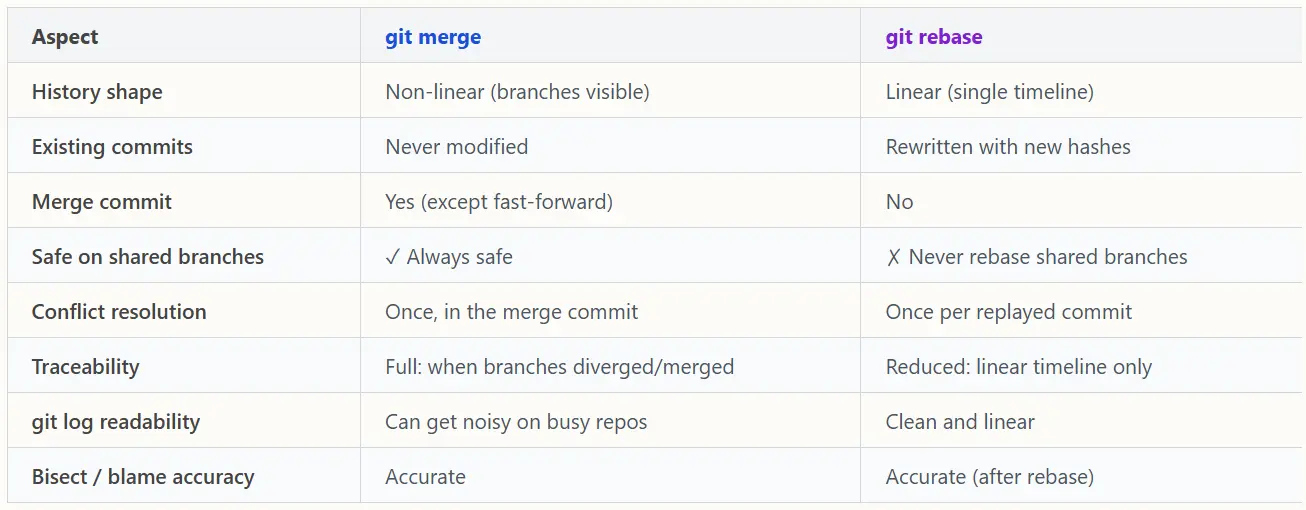
The Golden Rule of Rebasing
Never rebase a branch that other people are using.
Equivalently: never rebase commits that exist outside your local repository.
Here's exactly why this rule exists. Imagine your colleague has pulled your feature branch and built their own work on top of commit E. You then rebase feature onto the latest main, replacing E with E′. When your colleague tries to pull, Git sees two diverging histories — their branch has E as a parent, your branch has E′. Reconciling this is painful and error-prone.
The rule is simple in principle but requires discipline in practice. The safe application: rebase only your local, unpushed commits, or rebase a feature branch that only you are working on (and force-push to update the remote, with a clear heads-up to your team).
main, develop, and any other shared integration branches should never be rebased. These branches are the shared truth.
When to Use Merge
Integrating a finished feature into main
When a feature branch is complete and reviewed, merging it into main with a merge commit is the canonical approach. The merge commit marks a meaningful event: "feature X was completed and integrated on this date." It's traceable, reversible (you can revert the merge commit), and safe.
# Switch to main and merge the completed feature
git checkout main
git merge feature/user-auth

# Force a merge commit even if fast-forward is possible
# (preserves the fact that a feature branch existed)
git merge --no-ff feature/user-auth
Any time history accuracy matters
If you need to know exactly when two parallel workstreams diverged and when they came back together — for auditing, compliance, or debugging a timing-related issue — merge gives you that information. Rebase erases it.
Long-lived branches with multiple contributors
Release branches, develop branches, and branches with multiple authors should always be merged into, never rebased onto. The golden rule makes rebase essentially off-limits for these.
Bringing upstream changes into a long-running feature branch
Some teams prefer merge over rebase even for pulling main into a feature branch, because it avoids rewriting the feature branch's history. The history is messier but safer, especially when the feature branch has been reviewed incrementally.
When to Use Rebase
Keeping a local feature branch up to date with main
The most common and appropriate use case. While you're working on a feature, main keeps moving. Rebasing your branch onto the latest main keeps you in sync without polluting your branch history with merge commits:
# Update main first
git checkout main
git pull

# Rebase your feature branch on top of updated main
git checkout feature/my-feature
git rebase main

# If conflicts arise, resolve them, then:
git add .
git rebase --continue

# To abort and return to the pre-rebase state:
git rebase --abort
After this, your feature branch history is linear and current. When you eventually merge the feature into main, it'll be a clean fast-forward (or a single merge commit with no noise).
Before opening a pull request
Rebasing onto the latest main before pushing your PR means reviewers see a clean diff against current code, not code that diverged three weeks ago. Conflict resolution happens on your side before review, not during the merge.
Cleaning up your own local commits before sharing
Interactive rebase (covered in the next section) lets you squash "WIP" commits, fix typos in commit messages, and reorder commits before pushing. This is one of rebase's most valuable uses and has no downside as long as you haven't shared those commits yet.
.webp&w=3840&q=75)
Interactive Rebase: Cleaning Up History Before You Share It
git rebase -i (interactive rebase) opens an editor showing all the commits you're about to replay, with options to modify each one:
# Interactively rebase the last 4 commits
git rebase -i HEAD~4

# Or rebase everything since branching from main:
git rebase -i main
The editor shows something like this:
pick a1b2c3d Add user authentication endpoint
pick e4f5g6h WIP: fix token validation
pick i7j8k9l fix typo in variable name
pick m0n1o2p Add tests for auth endpoint

# Commands:
# p, pick   = use commit as-is
# r, reword = use commit, but edit the commit message
# e, edit   = use commit, but stop to amend
# s, squash = combine with previous commit
# f, fixup  = like squash, but discard this commit's message
# d, drop   = remove this commit
A common cleanup: squash the WIP and typo commits into the meaningful commits around them:
pick a1b2c3d Add user authentication endpoint
fixup e4f5g6h WIP: fix token validation
fixup i7j8k9l fix typo in variable name
pick m0n1o2p Add tests for auth endpoint
Save and close the editor. Git replays the commits, folding the fixup commits into their predecessors. The result is two clean, purposeful commits instead of four messy ones.
Reword vs squash vs fixup
- reword — keeps the commit but lets you edit the message. Good for fixing a vague "fix stuff" message.
- squash — combines with the previous commit and opens an editor to write a combined message.
- fixup — same as squash but silently discards this commit's message. Best for obvious cleanup commits.
- drop — removes the commit entirely. The changes are gone from history.
Conflict Resolution: Merge vs Rebase
Both commands can produce conflicts when the same lines were changed in both branches. How you resolve them differs.
Merge conflicts: once, in the merge commit
With git merge, you resolve all conflicts in a single step before completing the merge commit. Resolve, stage, commit — done.
# After merge conflict:
git status                  # see conflicting files
# Edit files to resolve conflicts
git add src/conflicted.py   # mark as resolved
git commit                  # complete the merge
Rebase conflicts: once per replayed commit
With git rebase, conflicts arise as Git replays each commit one at a time. If you have five commits and three of them touch the same file that main modified, you'll resolve conflicts three separate times.
# Rebase pauses at each conflicting commit:
git status
# Edit files to resolve
git add src/conflicted.py
git rebase --continue       # move to next commit

# Repeat for each conflicting commit
# Or abandon everything:
git rebase --abort
This "conflict per commit" behavior is why some developers prefer merge for complex integrations. If your feature branch has 20 commits and touches heavily modified files, resolving conflicts 20 times across a rebase is more painful than once in a merge. The interactive rebase squash strategy (squashing your branch to a few commits before rebasing) reduces this significantly.
Team Workflow Strategies
Individual decisions compound into team patterns. Here are the three most common git workflow strategies and how they use merge and rebase.
Merge-only (GitHub Flow variant)
Feature branches, PRs, merge into main. No rebasing. Simple to teach, predictable, and safe. History is non-linear but accurate. Works best with squash-merge on PRs to keep main clean while preserving full history in the feature branch.
feature → PR → squash merge to main
Rebase before merge
Developers rebase their feature branches onto the latest main before opening a PR, then merge. Results in a nearly linear main history with meaningful merge commits marking feature completion. Requires developers to understand rebase well enough to use it safely.
feature → rebase onto main → PR → merge to main
Fully linear (rebase-only)
All PRs are rebased (or squash-merged) onto main. No merge commits ever. git log on main is a straight line. Requires the most git sophistication from the team but produces the cleanest long-term history. Popular in projects where git bisect accuracy is important.
feature → interactive rebase/squash → rebase onto main → fast-forward merge
The right strategy depends on team size, git experience level, and how much you value historical accuracy vs. log cleanliness. Smaller, experienced teams often prefer rebase-heavy workflows. Larger teams with varied git experience are better served by merge-only with squash PRs, which is hard to misuse.
Quick-Reference Cheatsheet
| Situation | Command | Why |
|---|---|---|
| Integrate finished feature into main | git merge --no-ff feature/xyz | Preserves merge point; safe |
| Update feature branch with latest main (solo branch) | git rebase main | Keeps history linear; safe if branch is local or only yours |
| Clean up WIP commits before PR | git rebase -i HEAD~N | Squash/fixup messy commits; never share after |
| Combine multiple feature commits into one | git rebase -i main → squash | Clean PR history |
| Bring hotfix into develop and main | git merge hotfix (both branches) | Merge into both; don't rebase a hotfix branch |
| See what's in a branch before merging | git log main..feature --oneline | Doesn't merge anything; just inspect |
| Undo a bad merge | git revert -m 1 <merge-commit> | Safe; creates a revert commit |
| Undo a bad local rebase (before pushing) | git reflog → git reset --hard | Find the old HEAD in reflog |
Key Takeaways
- ✓ Merge preserves history accurately but produces non-linear logs. Rebase produces a clean linear history but rewrites commits.
- ✓ The golden rule: never rebase commits that exist on a shared branch or that others have pulled.
- ✓ Rebase your local feature branch onto main to stay current before opening a PR.
- ✓ Use interactive rebase (
git rebase -i) to squash WIP commits before sharing. - ✓ For finished features, merge into main — with
--no-ffto preserve the merge point. - ✓ When a rebase goes wrong,
git reflogis your escape hatch. - ✓ Team workflow consistency matters more than which command you favor — pick one approach and document it.

AI & Web Development Specialists
The Kodivio team covers AI tools, automation, and modern web development based on real-world testing and hands-on experience.
Learn more about us →