
Digital Privacy for Remote Workers
Your home office isn't as locked down as a corporate building — and attackers know it. Here's how to close the gaps without turning every workday into a security marathon.
Why Remote Work Creates Unique Privacy Risks
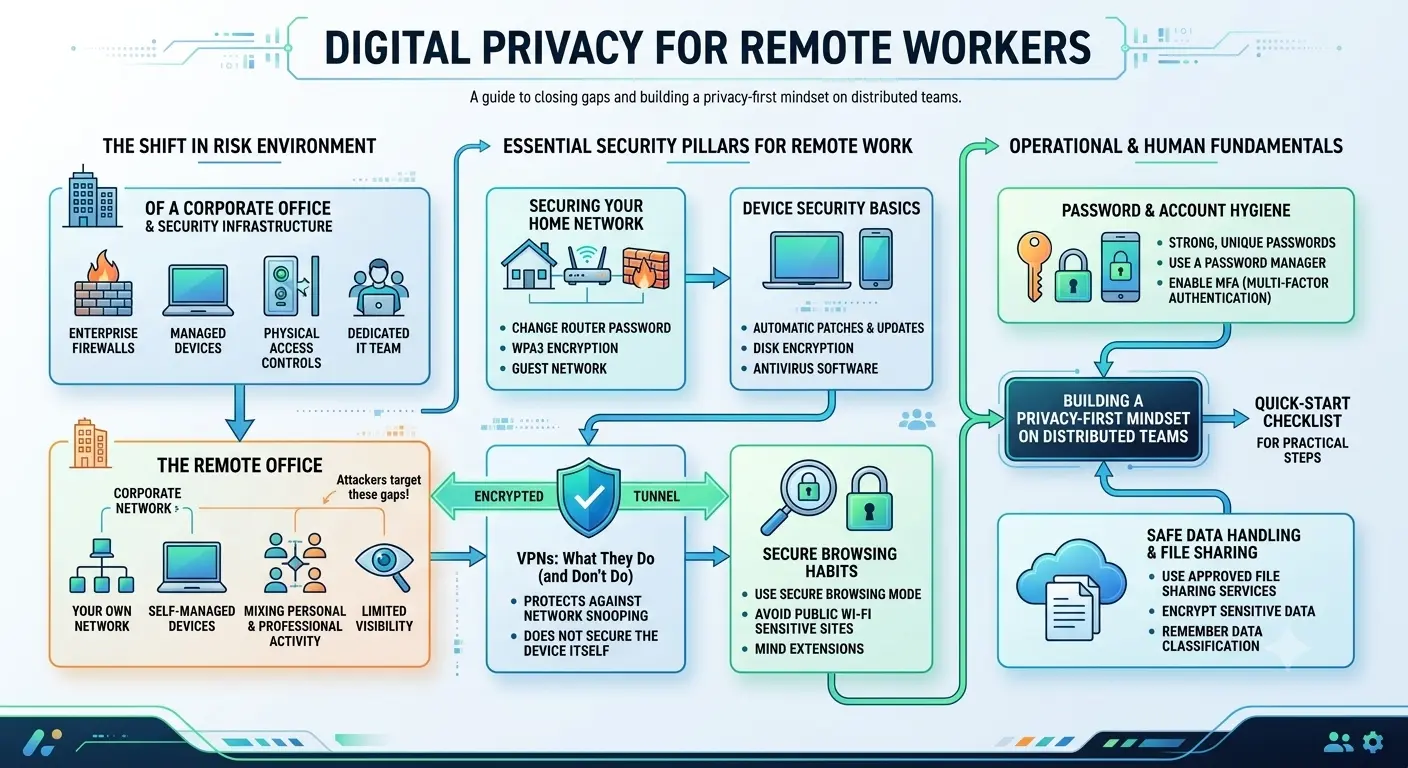
When you work inside a company office, a whole stack of security infrastructure works quietly in the background — enterprise firewalls, managed devices, physical access controls, and a dedicated IT team that patches problems before you even notice them. The moment you move to a home office, a coffee shop, or a hotel lobby, most of that disappears. You're on your own network, using devices you manage yourself, and probably mixing personal and professional activity on the same machine.
That's not a criticism — it's just the reality of distributed work. And it creates a specific set of risks worth understanding clearly before you throw solutions at them.
The three biggest threat surfaces for remote workers
- Your network — home routers are rarely patched and often use factory default credentials. Public Wi-Fi is almost always unencrypted.
- Your devices — personal laptops don't have the endpoint management that corporate devices do. Missing one update can open a serious hole.
- Your behavior — phishing, social engineering, and weak passwords bypass every technical control. Humans are reliably the soft target.
The good news: most remote work privacy incidents are preventable with a few consistent habits and a handful of tools. You don't need to become a security engineer. You need to understand what's actually at stake and make a few deliberate changes.
Securing Your Home Network
Your router is the front door to everything connected in your home. Most people set it up once, forget about it, and never touch it again — which is exactly the behavior attackers count on.
Change your router's default credentials immediately
Every router ships with a default admin username and password — usually something likeadmin / admin oradmin / password. These are publicly documented and trivially exploitable. Log into your router's admin panel (usually at 192.168.1.1 or 192.168.0.1) and set a unique, strong password before you do anything else.
Use WPA3 encryption — or WPA2 at minimum
Check your router's wireless security settings. If it's set to WEP or WPA (without the "2"), update it now — those protocols were cracked years ago. WPA3 is the current standard and offers significantly stronger protection. If your router doesn't support WPA3, WPA2 with AES encryption is acceptable; avoid TKIP.
Create a separate network for work
Most modern routers support guest networks or VLANs. Use this to put your work devices on a separate network segment from your smart TV, kids' tablets, and other household devices. If a smart home gadget gets compromised (a surprisingly common occurrence), it can't reach your work laptop if they're on isolated networks.
Keep your firmware updated
Router manufacturers release firmware updates to patch security vulnerabilities — but unlike your laptop, routers don't update themselves automatically by default. Set a calendar reminder to check for firmware updates every quarter. Some newer routers support auto-updates, which is worth enabling if yours does.
💡 Public Wi-Fi: the riskiest habit in remote work
Coffee shop Wi-Fi, hotel networks, and airport lounges are convenient — and genuinely dangerous. Traffic on these networks can be intercepted by anyone nearby using freely available tools. If you must work on public Wi-Fi, never access sensitive systems without a VPN active. Better still, tether to your phone's mobile data instead.
VPNs: What They Actually Do (and Don't Do)
VPNs are probably the most misunderstood security tool in the consumer space. They're marketed as magic privacy shields, when really they're more like a secure tunnel between your device and a server somewhere else on the internet.
What a VPN actually does
When you connect to a VPN, your traffic is encrypted between your device and the VPN server. This has two main effects: your ISP (or anyone on your local network, like a coffee shop router) can't see what sites you're visiting, and the websites you visit see the VPN server's IP address instead of yours.
For remote workers, the most important use case is protecting traffic on untrusted networks — particularly public Wi-Fi. A VPN turns an open hotspot into a much safer connection for work.
What a VPN does not do
- It doesn't make you anonymous online (you're still logged into your Google or Microsoft account).
- It doesn't protect against malware or phishing — those arrive through your browser or email regardless of your VPN status.
- It doesn't encrypt your traffic beyond the VPN server — the last mile to the destination website is only protected if that site uses HTTPS.
- A bad VPN can actually make things worse by routing your traffic through servers you can't trust.
Corporate VPN vs. personal VPN
If your employer provides a VPN, use it when accessing company systems. Corporate VPNs route your work traffic through your company's network infrastructure, giving IT teams visibility and control. Just be aware that your employer can see your activity through their VPN — it's not a personal privacy tool, it's a company security tool.
A personal VPN (like Mullvad, ProtonVPN, or similar) serves a different purpose: it protects your traffic from your ISP and local network observers. Use both if your situation calls for it, but understand what each one actually does.
Choosing a reputable VPN provider
Look for providers with independently audited no-logs policies, open-source clients, and a clear business model (i.e., you pay them, not a free service monetizing your data). Avoid any VPN that's free with no obvious revenue source — your traffic data is often what's being sold.
Device Security Basics
Your laptop is the most direct target in most remote work attacks. A compromised device can expose credentials, client data, company files, and communications — often without you knowing it's happening.
Full-disk encryption
Enable full-disk encryption on every device you use for work. On macOS, this is FileVault (System Settings → Privacy & Security → FileVault). On Windows, it's BitLocker (search for it in Settings). On Linux, most distributions offer LUKS encryption during installation.
What this does: if your laptop is stolen or physically accessed without your password, the data on it is unreadable. Without encryption, anyone with physical access to your drive can read every file on it.
Keep your OS and software updated
Security patches are released precisely because vulnerabilities have been found. Delaying updates is effectively choosing to leave known doors unlocked. Enable automatic updates for your operating system, browser, and any productivity software you use daily. For anything you can't auto-update, review and apply updates weekly.
Lock your screen — always
Configure your device to lock after two to five minutes of inactivity, and require a password or biometric to unlock. This is especially important if you have family members or housemates around. Set the lock shortcut as muscle memory:⌘ + Ctrl + Q on Mac,Win + L on Windows.
Separate work and personal use
Mixing personal browsing, gaming, or social media with work tools on the same device dramatically expands your attack surface. Ideally, maintain separate devices for work and personal use. If that's not feasible, use separate browser profiles at minimum — Chrome, Firefox, and Edge all support this. Your personal Google account and your work Microsoft account should never share the same browser session.
Be careful with external devices
USB drives found in parking lots or received in the mail are a real attack vector — not just a movie plot device. Never plug in a USB device you didn't purchase yourself. If you need to transfer files, use encrypted cloud storage or secure file sharing tools instead.
Secure Browsing Habits
Your browser is where most of your work actually happens — and it's also where most attacks land. Phishing pages, malicious ads, tracking scripts, and credential-stealing forms all live in the browser environment.
Always check for HTTPS
Any site that handles your credentials or sensitive data should use HTTPS (the padlock icon in your address bar). Modern browsers will warn you about HTTP-only sites, but it's still worth double-checking before entering any password or payment information. HTTPS means your connection to that site is encrypted — it doesn't mean the site itself is trustworthy, just that the connection is private.
Recognize phishing — it's gotten much better
Phishing emails and pages used to be easy to spot: poor grammar, generic greetings, obvious fake domains. Modern phishing is often indistinguishable from the real thing. Look-alike domains (m1crosoft.com instead of microsoft.com), cloned login pages, and AI-personalized emails are all in active use.
The safest rule: if an email asks you to click a link and log in, don't click the link. Go to the service directly by typing the URL yourself, or use a saved bookmark. Check the actual sender address (not just the display name), and be especially suspicious of any message creating urgency or fear.
Use privacy-respecting browser extensions
A small number of well-maintained extensions meaningfully improve your browser security:
- uBlock Origin — blocks malicious ads and trackers. One of the highest-impact privacy tools available, and it's free.
- HTTPS Everywhere (or enable HTTPS-only mode in your browser settings) — forces HTTPS connections where available.
- Your password manager's browser extension — autofills only on matching legitimate domains, which is a subtle but powerful phishing defense.
Keep extensions minimal — every extension has access to your browsing activity and can be a security risk itself if it's poorly maintained or sold to a new owner.
Use a privacy-focused DNS resolver
DNS is the phone book of the internet — every time you visit a website, your device makes a DNS lookup to find its IP address. By default, these queries go to your ISP unencrypted, meaning your ISP can log every domain you visit. Switching to an encrypted DNS provider (like Cloudflare's 1.1.1.1 or Quad9's 9.9.9.9, both of which support DNS-over-HTTPS) prevents this without affecting your browsing speed noticeably.
Encrypted Communication for Teams
When you're not in the same office, communication happens almost entirely over digital channels. The tools your team chooses for messaging, video calls, and file sharing have significant privacy implications.
Understand what "end-to-end encrypted" actually means
End-to-end encryption (E2EE) means only the sender and receiver can read the message — not the platform, not the server operator, not anyone intercepting traffic in between. This is meaningfully different from "encryption in transit," which just means the connection is encrypted but the platform itself can still read your messages.
For genuinely sensitive conversations, use tools that offer real E2EE: Signal for personal messaging, and business tools like ProtonMail or Tutanota for email. Note that most major workplace chat platforms (Slack, Teams, Google Chat) do not offer E2EE by default — they encrypt in transit and at rest, but the platform operators have access to message content.
Video call security
Video meetings have become a primary communication channel for remote teams. A few practices that make them safer:
- Always use meeting passwords or waiting rooms for external calls.
- Don't share meeting links publicly or post them in public channels.
- Be mindful of what's visible in your background — whiteboards, screens, and documents can leak sensitive information.
- Check your platform's data processing policies if you work with clients in regulated industries.
Email remains the highest-risk channel
Despite newer tools, email is still where most social engineering attacks arrive. Beyond phishing awareness, a few practical steps help:
- Be skeptical of unexpected attachments, even from known contacts (their accounts may be compromised).
- Never open attachments you weren't expecting — verify with the sender through a separate channel first.
- Use your email client's ability to display plain text instead of HTML to reduce the attack surface of incoming messages.
- For sensitive documents, share via secure cloud storage links rather than email attachments.
Password and Account Hygiene
Credential theft is the most common entry point for breaches affecting remote workers. And the most common cause of credential theft is reused, weak, or leaked passwords — all of which are entirely preventable.
Use a password manager
This is non-negotiable. A password manager lets you use a unique, long, random password for every account without needing to remember any of them. Options like Bitwarden (open source and free), 1Password, or Dashlane all work well. The one you'll actually use consistently is the right choice.
Once you're in a password manager, audit your existing accounts: look for duplicated passwords, weak passwords, and accounts you no longer use (which you should close or delete). Most password managers include a built-in health report for exactly this.
Enable MFA on everything important
Multi-factor authentication (MFA) adds a second layer beyond your password — typically a time-based one-time code from an authenticator app, or a hardware key. Even if your password is stolen, MFA prevents an attacker from logging in without the second factor.
Priority accounts for MFA: email (because password resets go there), company SSO, cloud storage, financial accounts, and anything with client data. Use an authenticator app (Google Authenticator, Authy, or the built-in options on iOS/Android) rather than SMS codes where possible — SMS codes can be intercepted through SIM-swapping attacks.
Monitor for breaches
Sign up for HaveIBeenPwned to get notified if any of your email addresses appear in a known data breach. Many password managers also include breach monitoring. If you're notified that an account was compromised, change that password immediately and check whether you've reused it anywhere else.
Safe Data Handling and File Sharing
How you store, transfer, and share files creates its own privacy surface. A lot of data incidents happen not through hacking but through accidental exposure — the wrong sharing settings, a file sent to the wrong person, or data stored in a personal account that shouldn't be there.
Keep work data in work systems
It's tempting to move files to your personal Dropbox or email something to yourself for convenience. Resist this. Personal cloud accounts typically have weaker security configurations, no IT oversight, and may be governed by different privacy policies than your employer's systems. If you need easier access to work files, solve it through your company's tools rather than working around them.
Audit your cloud sharing settings
Cloud storage platforms make it easy to share files — sometimes too easy. Periodically review your shared links in Google Drive, Dropbox, OneDrive, or whichever platform you use. Revoke any links that are no longer needed, especially "anyone with the link" shares that never expire.
Handle client and sensitive data with extra care
If your work involves client data, personal information, or regulated information (healthcare, legal, financial), understand what policies govern that data and follow them even when it's inconvenient. Many compliance incidents happen because someone took a shortcut in a moment of convenience. When in doubt, ask your IT or compliance team rather than guessing.
Secure deletion when you're done
Deleting a file doesn't always mean it's gone — it often just removes the pointer to where the data is stored, leaving the data itself recoverable. For sensitive files, use a secure deletion tool (like BleachBit on Windows/Linux, or the Secure Empty Trash option on older macOS versions). For whole drives being decommissioned, full-disk encryption means that wiping the encryption key makes data unrecoverable — check your platform's documentation for the proper procedure.
Building a Privacy-First Mindset on Distributed Teams
Individual habits matter enormously — but privacy also has a team dimension. When everyone on a distributed team makes security a personal priority, the risk to the whole organization drops significantly. When even one person cuts corners habitually, it can expose everyone.
Establish clear policies and communicate them
Remote teams need written, accessible policies covering: which tools are approved for different types of data, what to do if a device is lost or stolen, how to report a suspected security incident, and what the baseline expectations are for device security and network use. These don't need to be lengthy — clear and practical beats comprehensive and unread every time.
Normalize reporting incidents without blame
The worst security culture is one where people are afraid to report something because they'll get in trouble. If someone clicks a phishing link, the fastest path to containing damage is immediate reporting. Teams where incidents go unreported because of fear of consequences are much harder to protect. Make it genuinely easy and safe to say "I think I made a mistake."
Run regular phishing simulations
Phishing simulation tools (many IT security vendors offer them) send realistic-looking phishing tests to your team and track who clicks. The goal isn't to catch people out and punish them — it's to identify who needs more training and to keep everyone's instincts sharp. Followed up with good training, these exercises meaningfully reduce click rates over time.
Onboard new team members with privacy in mind
The first week is when habits form. Make sure security expectations are part of your onboarding process, not an afterthought. Walk new team members through the tools they should use, why certain practices are required, and who to contact with questions. A well-onboarded team member is far less likely to create problems through ignorance six months later.
Quick-Start Checklist
Use this as your starting point. You don't need to do everything at once — work through it over a week and you'll be in a significantly better position than most remote workers.
- Changed router admin password from default
- Using WPA3 or WPA2/AES encryption
- Work devices on a separate network segment
- Router firmware checked and updated
- Full-disk encryption enabled on all work devices
- Auto-updates enabled for OS and key software
- Screen lock set to 2–5 minutes of inactivity
- Separate browser profiles for work and personal
- Password manager installed and in use
- Unique passwords for all work accounts
- MFA enabled on email, SSO, and key tools
- Email address checked on HaveIBeenPwned
- uBlock Origin installed
- HTTPS-only mode enabled in browser
- Encrypted DNS configured (1.1.1.1 or 9.9.9.9)
- Phishing awareness practiced
- Aware of which tools offer genuine E2EE
- Meeting security settings reviewed
- File sharing permissions audited quarterly
The Bottom Line
Digital privacy as a remote worker isn't about achieving perfection — it's about removing the easy targets. Most attacks succeed because of predictable, fixable gaps: default credentials, unpatched software, reused passwords, and a moment of distraction on a phishing email.
Close those gaps, stay consistent, and you'll be a much harder target than the average remote worker. That's a realistic and genuinely achievable goal — and it makes a real difference.

Cybersecurity & Tech Research Team
The Kodivio team covers cybersecurity best practices, threat analysis, and digital safety tools based on hands-on testing and industry sources.
Learn more about us →