
Why Is My Docker Container Running But Not Accessible? (Fix Guide)
You ran docker ps and the container is green — but the browser times out, curl gets refused, and nothing makes sense. Here's how to diagnose and fix every common cause, step by step.
"Running" in Docker doesn't mean "working". A container can report Up 3 minutes in docker ps while the process inside has already exited, the port was never exposed, the app is listening on the wrong interface, or a firewall is silently dropping packets before they ever arrive.
The good news: this is one of Docker's most common friction points, and every root cause has a clear fix. Work through this guide top to bottom and you'll almost certainly find your answer.
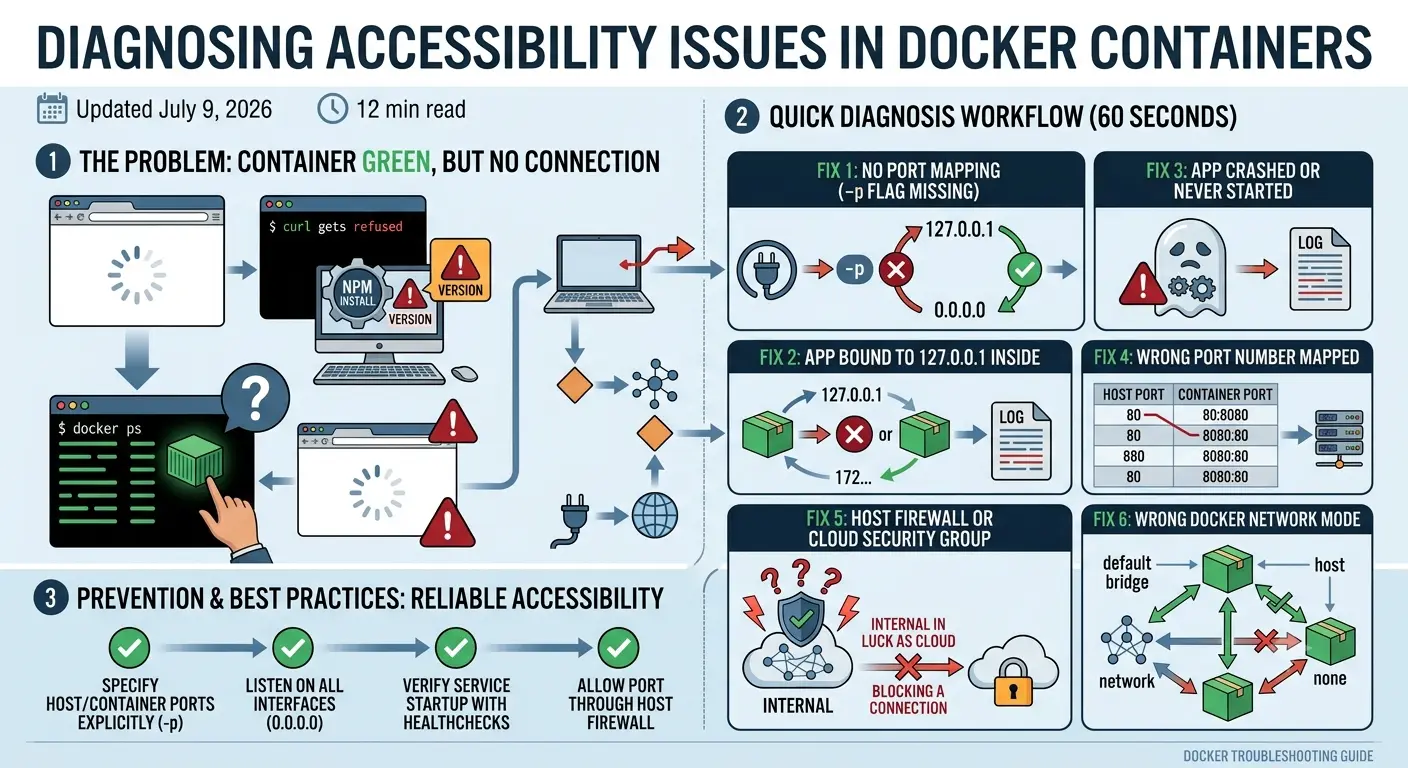
Quick Diagnosis — Figure Out What's Wrong in 60 Seconds
Before diving into specific fixes, run these three commands. Together they'll tell you which of the causes below you're actually dealing with.
# 1. Is the container actually running, and are ports mapped?
docker ps -a

# 2. What is the app inside the container doing?
docker logs <container-name-or-id>

# 3. Is something listening on the port you expect?
docker exec -it <container-name-or-id> sh -c "ss -tlnp || netstat -tlnp"
| What you see | Likely cause | Jump to |
|---|---|---|
| Container shows Exited in docker ps -a | App crashed on startup | Fix → |
| No port listed in the PORTS column | Missing -p flag | Fix → |
| Port shown as 0.0.0.0:3000→3000/tcp but still unreachable | App bound to 127.0.0.1 inside, or firewall issue | Fix → |
| Nothing listening on expected port inside container | App started on a different port | Fix → |
| Port accessible from localhost but not remote | Firewall / security group | Fix → |
| Works in isolation but not with other services | Docker Compose network issue | Fix → |
Fix: No Port Mapping — The -p Flag Is Missing
This is the single most common reason. Docker containers run in their own isolated network namespace. A port that's open inside the container is completely invisible to your host machine unless you explicitly map it.
How to confirm
docker ps

# If the PORTS column is empty or only shows container-side ports:
# CONTAINER ID   IMAGE    ...   PORTS
# a1b2c3d4e5f6   myapp    ...   3000/tcp   ← no host mapping!
The fix
Stop the container and re-run it with the -p flag:
# Format: -p <host-port>:<container-port>
docker run -p 3000:3000 myapp

# Bind to all interfaces (reachable from outside the host too)
docker run -p 0.0.0.0:3000:3000 myapp

# Or bind only to localhost (more secure for local dev)
docker run -p 127.0.0.1:3000:3000 myapp
💡 EXPOSE vs -p
The EXPOSE instruction in a Dockerfile is documentation — it doesn't actually publish the port to the host. You still need -p at runtime. Think of EXPOSE as a label that says "this container expects traffic on this port"; -p is what actually wires it up.
Fix: App Bound to 127.0.0.1 Inside the Container
You've correctly mapped the port with -p, the container is running, but the connection is still refused. This is usually because your application is listening on 127.0.0.1 (localhost) inside the container rather than 0.0.0.0 (all interfaces).
Docker's port forwarding works at the network interface level. Traffic arriving from outside the container hits eth0 inside the container — not loopback. If your app only listens on loopback, Docker's forwarding has nowhere to send the traffic.
How to confirm
docker exec -it <container> sh -c "ss -tlnp"

# Look for the Local Address column:
# 127.0.0.1:3000  ← only accessible inside container (broken)
# 0.0.0.0:3000    ← accessible from outside (correct)
The fix — per framework
Node.js / Express
// Before (broken in Docker)
app.listen(3000)                        // defaults to 127.0.0.1

// After (correct)
app.listen(3000, '0.0.0.0', () => {
  console.log('Listening on 0.0.0.0:3000')
})
Python / Flask
# Before
app.run(port=5000)                     # defaults to 127.0.0.1

# After
app.run(host='0.0.0.0', port=5000)
Python / FastAPI / Uvicorn
uvicorn main:app --host 0.0.0.0 --port 8000
Go / net/http
// Before
http.ListenAndServe(":8080", nil)      // already binds 0.0.0.0 ✓

// If you explicitly bound to loopback:
http.ListenAndServe("127.0.0.1:8080", nil) // ← this breaks it
Vite / React dev server
// vite.config.js
export default {
  server: {
    host: '0.0.0.0',   // expose to Docker host
    port: 5173,
  }
}
Fix: The App Inside the Container Crashed or Never Started
Docker reports a container as running based on whether the entrypoint process is alive — not whether your app successfully initialized. A container can show Up for a few seconds before the process exits, and docker ps -a will then show it as Exited.
How to confirm and debug
# Check status — Exited (1) means it crashed
docker ps -a

# Read the crash output
docker logs <container>

# Follow logs in real time as the container starts
docker logs -f <container>

# Get the exit code
docker inspect <container> --format='{{.State.ExitCode}}'
Common crash causes
Missing environment variable
Pass -e MY_VAR=value or use --env-file .env when running the container.
Port already in use on the host
Run lsof -i :3000 (macOS/Linux) or netstat -ano | findstr :3000 (Windows) to find and kill the conflicting process.
Missing file or volume
Check that any volume mounts (-v) point to paths that exist on the host.
Wrong entrypoint or command
Override the command temporarily to debug: docker run -it myapp /bin/sh
Permission error on mounted files
The container user may not have access to the mounted path. Use --user or fix permissions with chmod.
Fix: You Mapped the Wrong Port Number
Easy to do, easy to miss. You mapped -p 3000:3000, but the app is actually listening on 8080 inside the container. The mapping is technically valid — it just points to the wrong door.
How to find the real port
# See what's actually listening inside the container
docker exec -it <container> sh -c "ss -tlnp"

# Or check the image's declared EXPOSE ports
docker inspect <image-name> --format='{{.Config.ExposedPorts}}'

# Or read the Dockerfile
grep EXPOSE Dockerfile
The fix
# If the app listens on 8080 inside but you want it on 3000 outside:
docker run -p 3000:8080 myapp
#              ↑       ↑
#         host port   container port
💡 Remember the order
The -p format is always host:container. A helpful mnemonic: "outside:inside". If you mix them up, you'll be knocking on the wrong door from the wrong house.
Fix: Host Firewall or Cloud Security Group Blocking the Port
If the container is accessible from localhost on the host machine but not from your laptop or the internet, a firewall is almost certainly the culprit.
Linux — check ufw / iptables
# Check ufw status
sudo ufw status

# Allow a port (example: 3000)
sudo ufw allow 3000/tcp

# Or check iptables directly
sudo iptables -L -n | grep 3000
Cloud providers — security groups and firewall rules
AWS EC2
Go to EC2 → Security Groups → Inbound Rules. Add a Custom TCP rule for your port with source 0.0.0.0/0 (or a specific CIDR).
Google Cloud (GCE)
VPC Network → Firewall → Create rule. Set direction: Ingress, protocol: tcp, port: your port, target: your instance tag.
Azure
Network Security Group → Inbound security rules → Add. Set destination port ranges to your port.
DigitalOcean
Networking → Firewalls → Inbound Rules. Add TCP rule for your port.
Test before assuming it's Docker's fault
# From your local machine, test if the port is reachable at all
curl -v http://<server-ip>:3000

# Or use nc (netcat) to test raw TCP connectivity
nc -zv <server-ip> 3000
Fix: Wrong Docker Network Mode
Docker offers several network modes and they behave very differently when it comes to port accessibility.
| Mode | Behaviour | Port mapping needed? |
|---|---|---|
| bridge (default) | Container gets its own IP. Host communicates via mapped ports. | Yes — always use -p |
| host | Container shares the host's network stack. Port mapping is ignored. | No — but Linux only |
| none | Container has no network. Completely isolated. | N/A |
| custom bridge | Like bridge, but containers can reach each other by name. | Yes for host access |
If you're on Linux and want to skip port mapping entirely during development, --network host makes the container's ports directly available on the host. On macOS and Windows, this mode is not supported (Docker Desktop runs a Linux VM underneath, so host mode maps to the VM, not your machine).
# Linux only — shares host network, no -p needed
docker run --network host myapp
Fix: Docker Compose Port or Network Misconfiguration
Docker Compose adds a layer of abstraction that introduces its own set of gotchas — particularly around how ports and inter-service networking are declared.
Port mapping in Compose
The Compose equivalent of -p is the ports key. Without it, the port is only reachable by other services in the same Compose network, not from your host machine.
# docker-compose.yml

services:
  app:
    image: myapp
    ports:
      - "3000:3000"       # host:container — exposes to your machine
    # Without this, only other services can reach :3000
Service-to-service communication in Compose
If your app container can't reach a database or Redis container, the issue is usually using localhost instead of the service name.
# Broken — 'localhost' inside app refers to the app container itself
DATABASE_URL=postgres://localhost:5432/mydb

# Correct — use the service name as hostname
DATABASE_URL=postgres://db:5432/mydb
#                             ↑
#               matches the service name in docker-compose.yml
Compose debugging commands
# View all running services and their port mappings
docker compose ps

# Stream all service logs
docker compose logs -f

# Inspect the network Compose created
docker network inspect <project-name>_default

# Test connectivity between services
docker compose exec app ping db
Prevention: Making Containers Reliably Accessible
Most of these issues are one-time learning curves. Build the right habits now and you'll rarely hit them again.
Always bind your app to 0.0.0.0
Make it a team convention. If you're containerizing an app, the server should listen on 0.0.0.0, not localhost. Document this in your README.
Add a HEALTHCHECK to your Dockerfile
Docker's HEALTHCHECK instruction lets you define a command that verifies the app is actually responding — not just that the process is running.
HEALTHCHECK --interval=30s --timeout=5s --start-period=10s \
  CMD curl -f http://localhost:3000/health || exit 1
Use docker compose up --build --force-recreate in dev
This ensures you're running the latest image and config, not a stale cached version.
docker compose up --build --force-recreate
Test port accessibility as part of your startup script
A simple curl inside the container during startup can surface binding issues immediately.
# Entrypoint script
node server.js &
sleep 2
curl -sf http://localhost:3000/health || exit 1
Document your ports in docker-compose.yml comments
A one-line comment explaining what each mapped port is for saves future-you (and your team) a lot of confusion.
ports:
  - "3000:3000"  # Next.js dev server — visit http://localhost:3000
  - "5432:5432"  # Postgres — connect with psql -h localhost -p 5432
Quick-reference summary
- ✓docker ps -a + docker logs is your starting point — always check these first.
- ✓Missing -p flag is the #1 cause. EXPOSE in a Dockerfile does NOT publish the port.
- ✓App bound to 127.0.0.1 inside the container is the #2 cause. Always listen on 0.0.0.0.
- ✓In Docker Compose, use the service name (not localhost) to talk between services.
- ✓On cloud servers, check security groups / firewall rules before blaming Docker.
- ✓Add a HEALTHCHECK so Docker can tell you if the app is actually responding.
Related guides

AI & Web Development Specialists
The Kodivio team covers AI tools, automation, and modern web development based on real-world testing and hands-on experience.
Learn more about us →